Transactions module
Track your income and expenses and import your bank statement
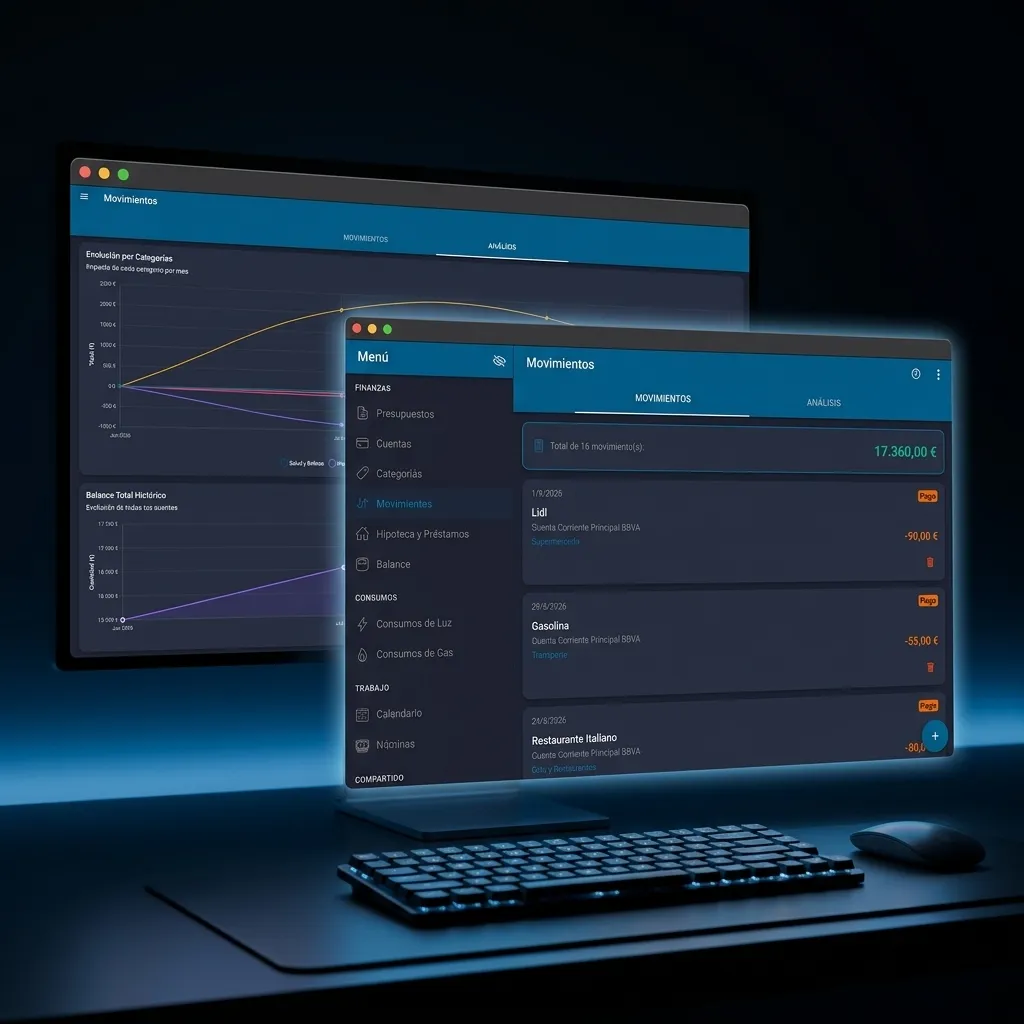
Record every income and expense instantly or import your bank statement as CSV or Excel. See the balance of each account after every transaction and get a clear view of your personal finances.
Transactions
What is the transaction log?
It's the real-time history of all the money coming into and going out of your finances.
Every supermarket payment, salary payment, utility bill or transfer between your accounts is recorded neatly with its amount, date and optional notes.
Related guide: How to import your bank statement
Benefits
Why record your transactions?
It brings order, stops money slipping away unnoticed and automates the tracking of your accounts.
-
Tracking by bank account
Link each transaction to its account (bank, cash, card) and see the account balance and the total across all accounts after every transaction.
-
Precise categorisation
Classify your transactions with labels (Home, Leisure, Groceries, Salary) to understand where every euro comes from and where it goes.
-
Bank statements without duplicates
Import your statement from Revolut, ING, BBVA, Imagin, CaixaBank, Unicaja, B100, Sabadell or Trade Republic (CSV or Excel) right from the account: the app avoids duplicates, can assign categories automatically from the description and tells you how many transactions it created, updated and skipped.
-
Balances for your net worth
Your transactions are stored so the combined balance of your accounts can be worked out automatically when you update your liquid assets in the Net worth section.
Step by step
How does it work in Finanzona?
Follow these 4 steps to keep your transactions spotless.
-
Set up your accounts and categories (first step)
First create your bank or cash accounts and, if you like, your categories (you can also create them with the
+button in the form). -
Add your transactions or import a statement
The first time you sign in, the app offers to add your first transaction. Fill in its details (type, amount, date, description, account and categories) or tap Import on the account and choose your bank statement.
-
Filter and search your history
Filter by text in the description or notes, date range, transaction type, accounts and categories (including “Uncategorised”) and export the filtered results to CSV.
-
Use your transactions to update your net worth
In the Net worth module, use the option to fetch transactions in your liquid assets to work out the exact total of your accounts automatically.
Frequently asked questions
Transaction FAQs
Answers to all your questions so you can manage your transactions with ease.
What is a transaction in Finanzona?
It's money coming into or going out of an account: income, payment, internal transfer (in/out) between your accounts, opening balance or balance check. It stores the amount, type, date, description, notes, account and categories.
Why do I need to create an Account first?
Every transaction needs an Account, which tells the app which balance it affects. Categories are optional, but recommended for classifying it in reports and budgets. You can create both without leaving the form.
Can I import my bank statements?
Yes. From each account you can import statements from Revolut, Imagin, CaixaBank, B100 or Trade Republic (CSV) and from ING, BBVA, Unicaja or Sabadell (Excel), as well as the app's own CSV. Transactions you already had are not duplicated, and you can assign categories automatically based on earlier transactions with the same description. If your bank isn't listed or only gives you a PDF, pass the statement to your connected AI assistant, which can also read screenshots and photos, and it will prepare the import. The file you give it is received by the assistant's provider with everything it contains, not by Finanzona: cover anything that isn't needed, such as your full account number.
How do transactions update my net worth?
In the Net worth section, when you add or edit a Liquid asset, the calculator button fetches the transactions of the accounts you select and works out their combined balance precisely.
Can I filter transactions?
Yes. You can filter by text in the description or notes, by date range, transaction type, accounts and categories, and export only the filtered transactions to CSV.
Can I see who changed a transaction and when?
Yes. Each record has a change history (the clock button) showing who created, edited or deleted it, when, whether it was from the app or an AI assistant and what changed, with the previous value. Each change is kept for 2 years.
Can I look up my transactions with Claude or ChatGPT?
Yes, if you enable it. Connect your AI assistant and ask it about your spending, or ask it to record or import transactions from any file it can read, including a PDF or a photo of a receipt: it always shows you a preview before saving anything. Find out more in AI assistants.
All in one app
More from Finanzona
Ready to organise your transactions?
Start recording your income and expenses today with complete clarity.
Want to see it first? Try the demo without creating an account · How it works